Select and move objects
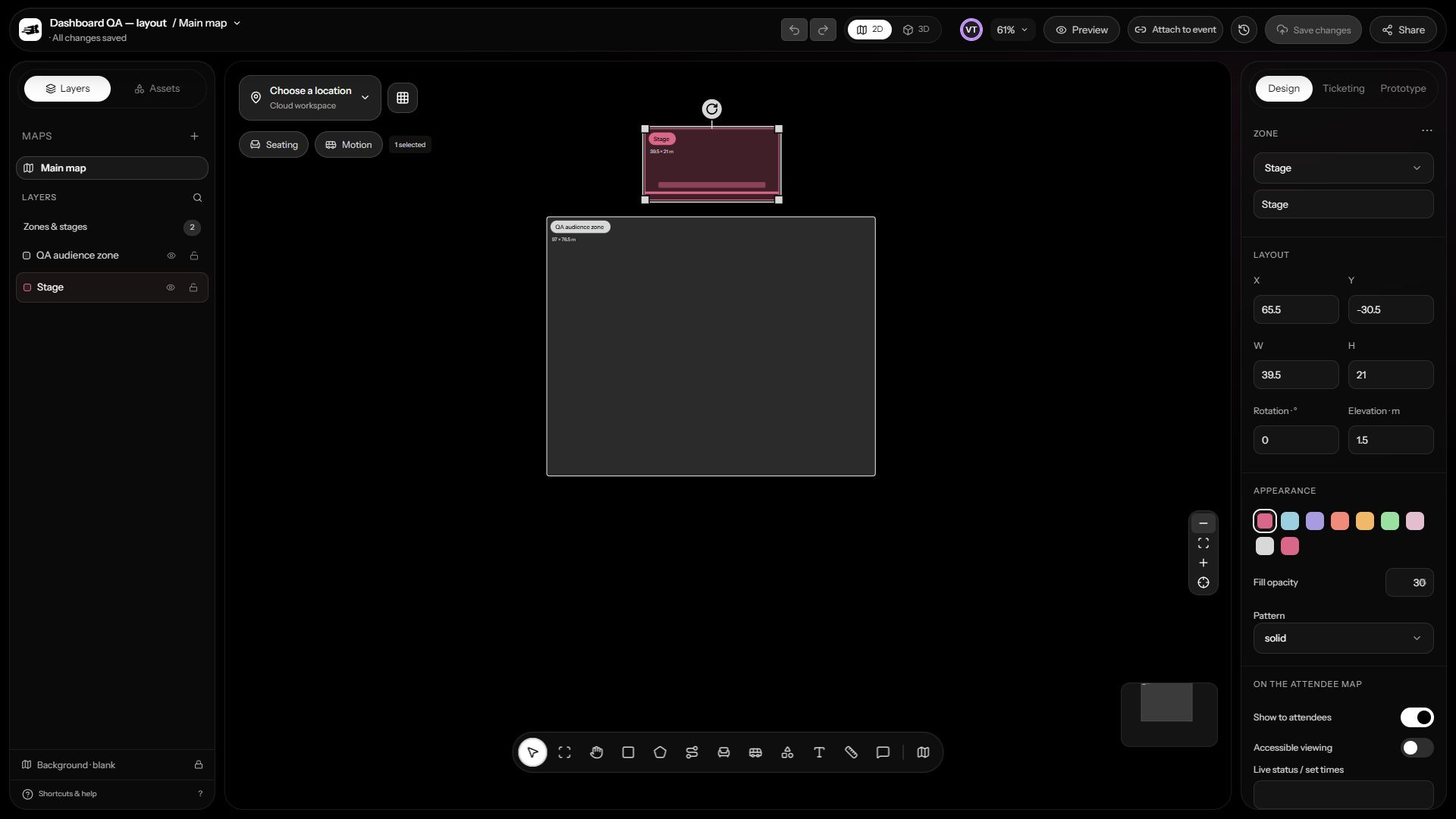
- Choose Select (V) and click an object to open its properties.
- Drag the selected object to move it, or enter exact X and Y coordinates in Properties.
- Use Shift to add to a selection or drag a selection area. Use Alt-click to select an individual seat inside a group.
- Use the alignment and distribution controls for a multiple selection. Group related objects when you want to move them together.
Pan and zoom
Use Hand (H), drag empty canvas, or middle-drag to move around the plan. Use the visible zoom and fit controls to return to the whole board. On touch devices, use Hand to pan and pinch to zoom.
Grid snapping helps keep objects aligned. Turn the grid or snapping on and off in map settings as needed; snapping uses half-metre increments.
Layers and protection
Use Layers to find objects that overlap. Bring to front and Send to back change drawing order. Hidden objects are omitted from views that respect visibility; locked objects cannot be edited until unlocked.
Group and Ungroup organize editing. Duplicating an object creates another editable object; for seats, check the new labels and ticket assignments before applying the booking map.
Undo and recovery
Undo and Redo handle recent editing actions. Cloud version history restores a saved design as a new version. Export a VenuDash workspace before a major import if you want an additional portable copy.