
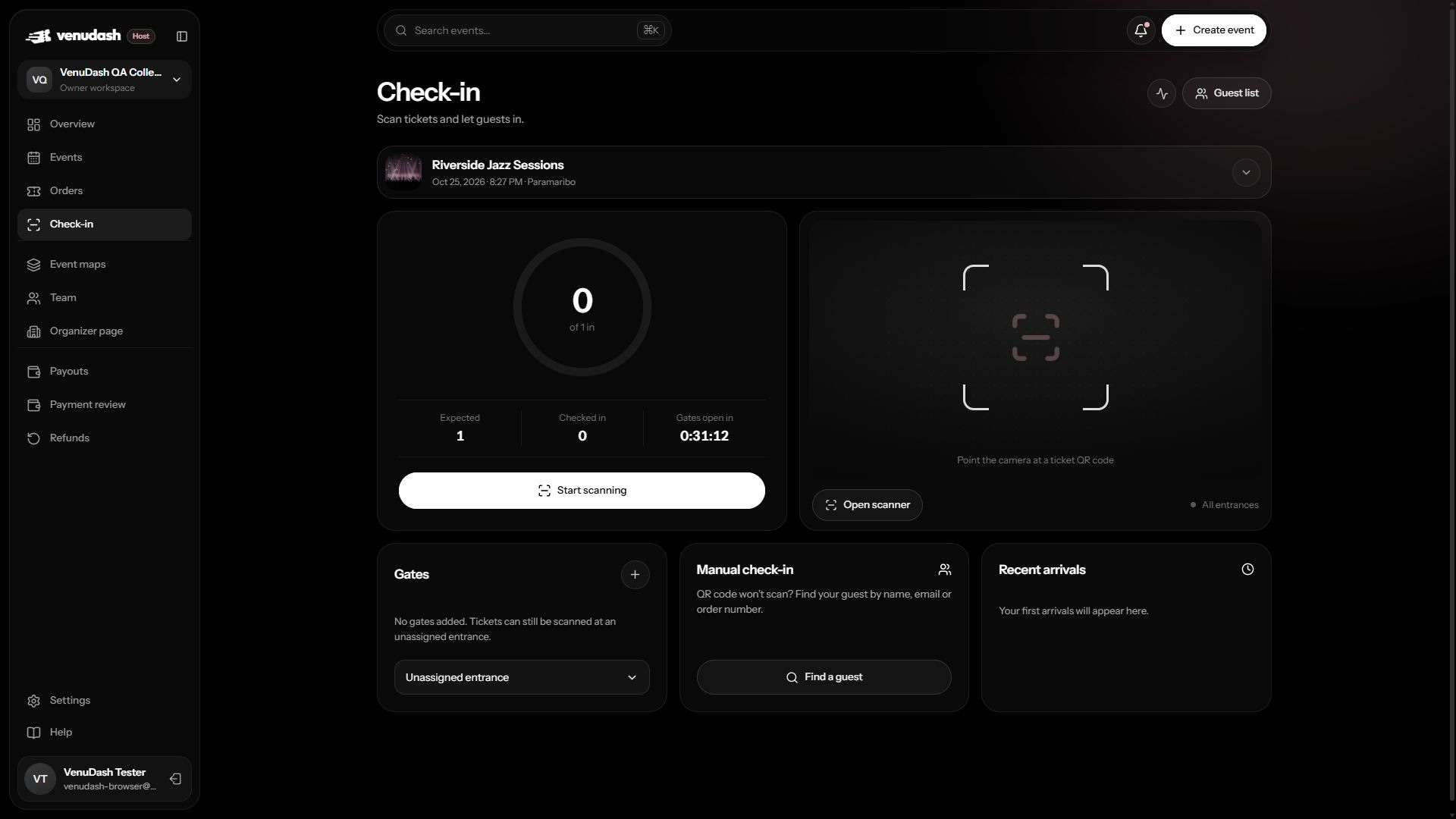
Prepare your station
- Open Check-in from the dashboard, or use the scanning link from the event details.
- Check the selected event image and title. Choose the event you are admitting guests to.
- Check the Scanning as identity. Use your own team account so the scan history identifies the correct person.
- Select the gate and enter a useful device label where offered, such as North entrance tablet.
- Choose Start scanning to open the scanner. Use the camera or enter a ticket code manually. Grant camera access only to the app you intend to use.
Scan a guest
- Present the QR code clearly to the camera, or enter the ticket code using the available input.
- Wait for the verification result before admitting the guest.
- For an accepted ticket, check any holder or seat details needed at your entrance.
- For a refused scan, read the reason and involve the organizer when the guest needs help.
Scan results
| Result | Meaning and next step |
|---|---|
| Accepted | The ticket was verified and check-in recorded. |
| Duplicate | The ticket has already been checked in. Review the prior entry with a supervisor. |
| Wrong event | Check the event selected at the station and the guest’s ticket. |
| Revoked | The ticket is no longer valid, for example after cancellation. |
| Invalid | The code could not be accepted. Ask for the original ticket and check the booking. |
Keep your connection working
Wait for the app’s verification result. A camera reading a QR pattern is not the same as a successful admission. If connectivity fails, follow the organizer’s contingency procedure and reconcile admissions before resuming normal scanning.