Open and edit an event
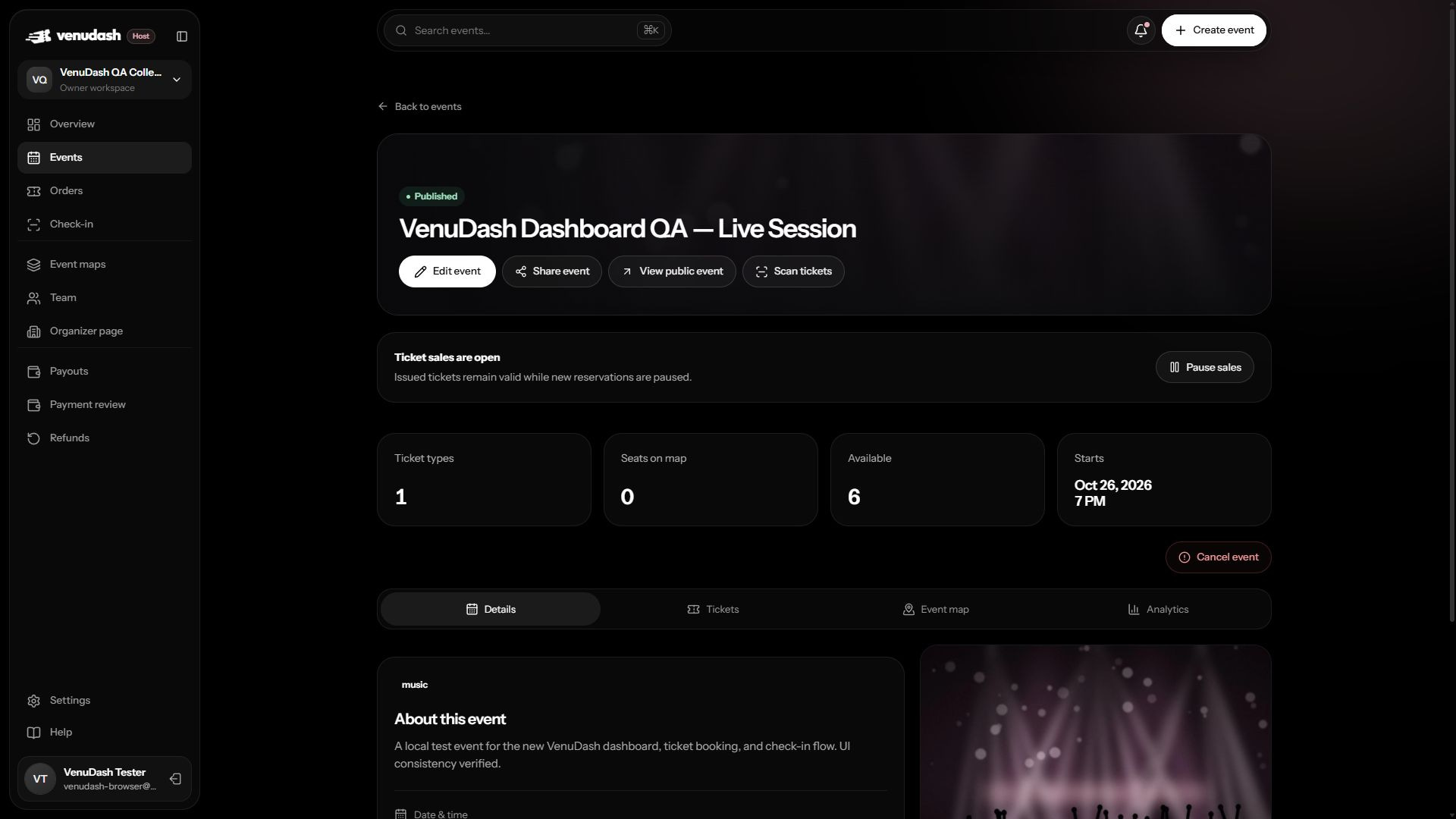
- Open Events and select the event row.
- Use Details, Tickets, Event map or Analytics to inspect the event. Select Edit event when you want to change its details; viewing a tab does not enable editing.
- Make your changes and inspect the save status. Use Save changes when edits are pending.
- Wait for All changes saved or the successful confirmation before navigating away.
- Use Preview or View public event to check the attendee-facing result. Share event gives you the public event link.
Event states
| State | Meaning |
|---|---|
| Draft | Prepare the event and booking map before public sales. |
| Published | The event is available to guests according to its sales availability. |
| Paused | New sales are stopped while you review the event. Existing bookings still need support. |
| Cancelled | Sales stop and entry tickets are revoked. Paid bookings need refund handling. |
After tickets have been issued
Keep guest commitments in mind when changing information. The live booking layout is locked to protect issued tickets. Use the cancellation workflow if the event will not happen; pausing sales does not notify guests that the event is cancelled.
Before leaving a form
An enabled save action or an unsaved-changes message means there is work to save. Correct any errors and retry. Switching a tab is not evidence that a failed save succeeded.